
Your Socialbot account and settings
A Socialbot account is a username, an email address and a password. It never holds a TikTok, Instagram or YouTube login. Everything about the account lives in Settings, under your name at the top right of the site: your plans and what’s left of them, the browsers you’re signed in on and your account details.
How to sign in to Socialbot
Press Sign Up at the top right of the site (in the menu on a phone), then Sign In under the form, next to “Already have an account?”. You can sign in with your username or your email address, and the dashboard opens once you’re in.
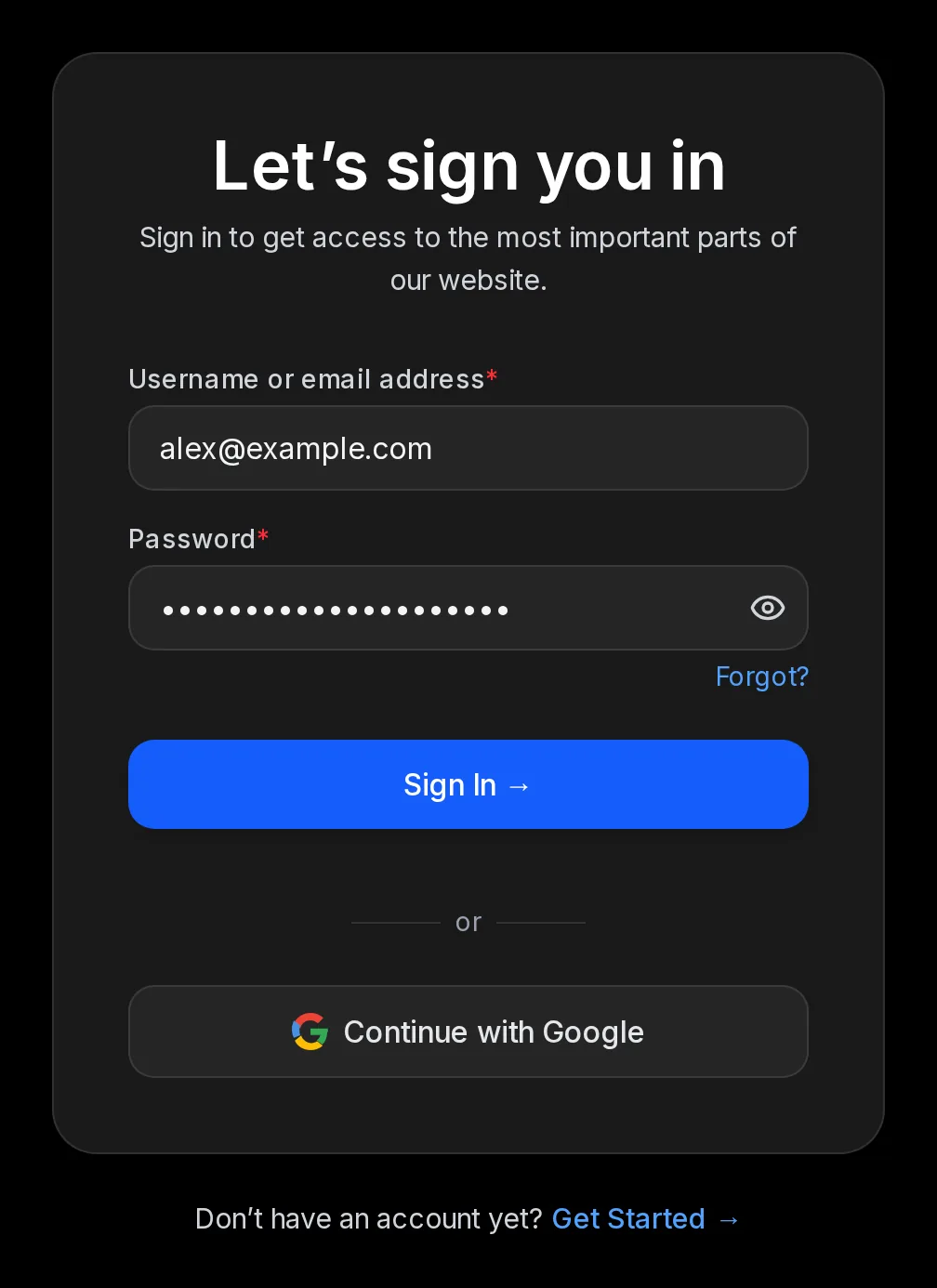
- Username or email address: either one works
- Password
- Forgot?: email reset isn’t switched on yet, so ask us in the live chat
- Sign In
- Continue with Google: not available yet
No account yet? The link under the form, Get Started, opens sign-up. Step 1 of getting started shows that form.
The account menu: Usage, Settings, Help and Log out
Click your name at the top right, on any page. The menu shows who is signed in and four items.
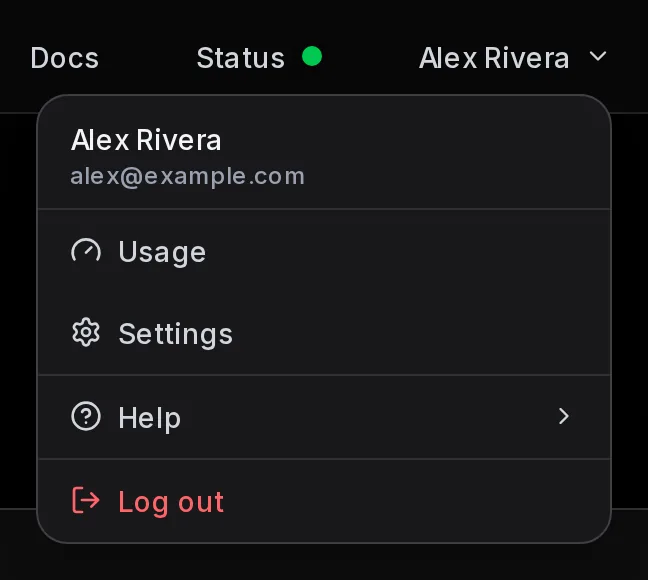
- Your username and email
- Usage: opens Settings on the Subscription tab, with what’s left of each plan
- Settings: plans, sessions and account details
- Help: opens the live chat with support
- Log out: signs this browser out
Settings, Subscription: your plan and what’s left
Settings opens on the Subscription tab, and Usage in the account menu always goes straight to it. The tab has one block per platform with the plan’s name, its status, the Renews on date and a tile for each metric that reads, for example, “10,000 left” and “0 used”. A platform without a plan shows No active subscription and a View plans button.
How to read those tiles, and when each allowance comes back, is in how allowances work.
Settings, Security: see and end your sessions
The Security tab lists every browser where your account is signed in, with the device, the browser and when it was last active. The one you’re using is tagged Current device, and every other one has its own Log out button.
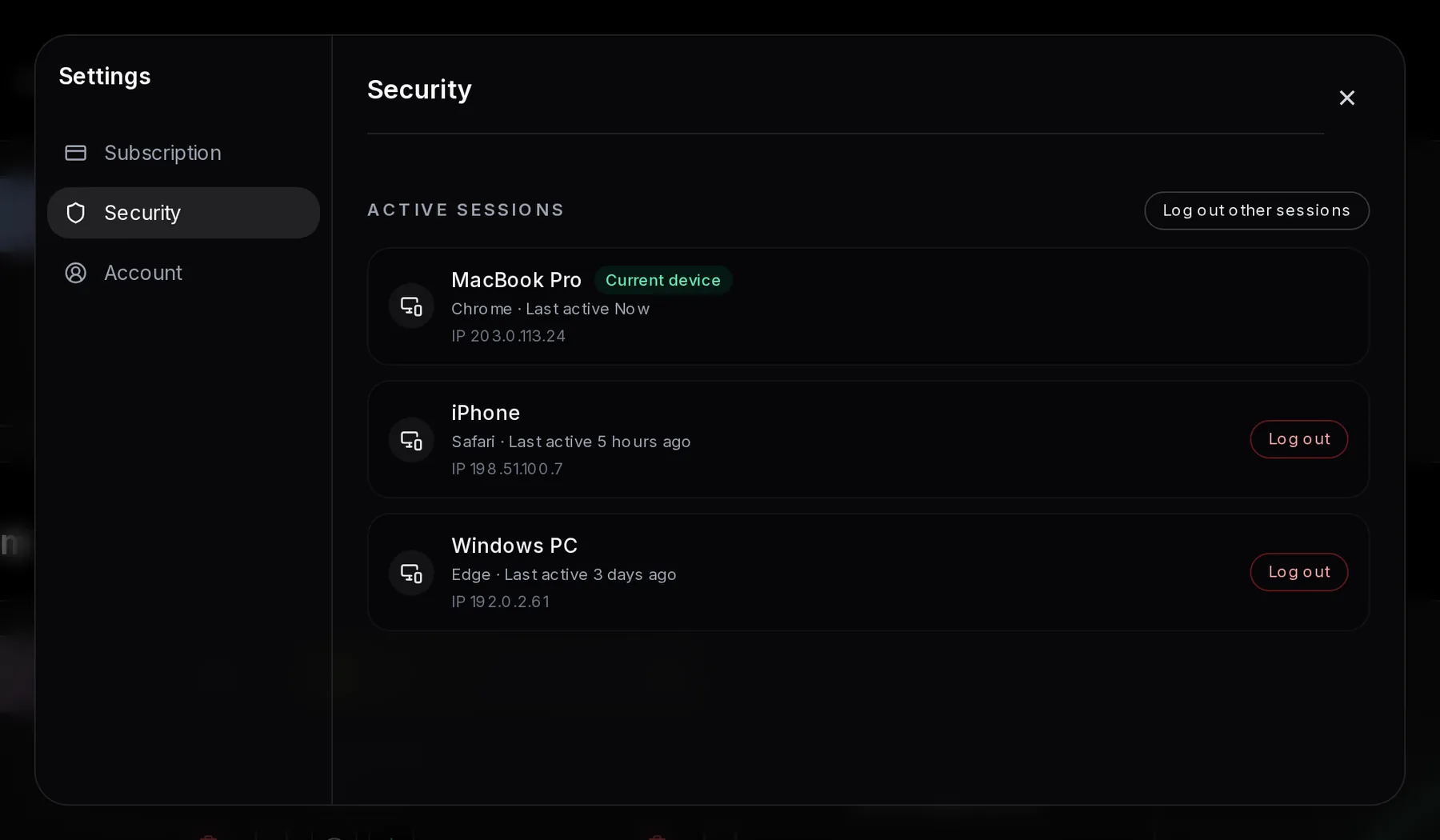
- Security tab
- A session: device, browser and last activity
- Log out other sessions: signs out every browser except this one
Say you signed in on a friend’s laptop and forgot to log out. Press Log out other sessions on your own device and that browser is signed out. If you see a device you don’t recognize, do the same and tell us in the live chat.
Settings, Account: your account details
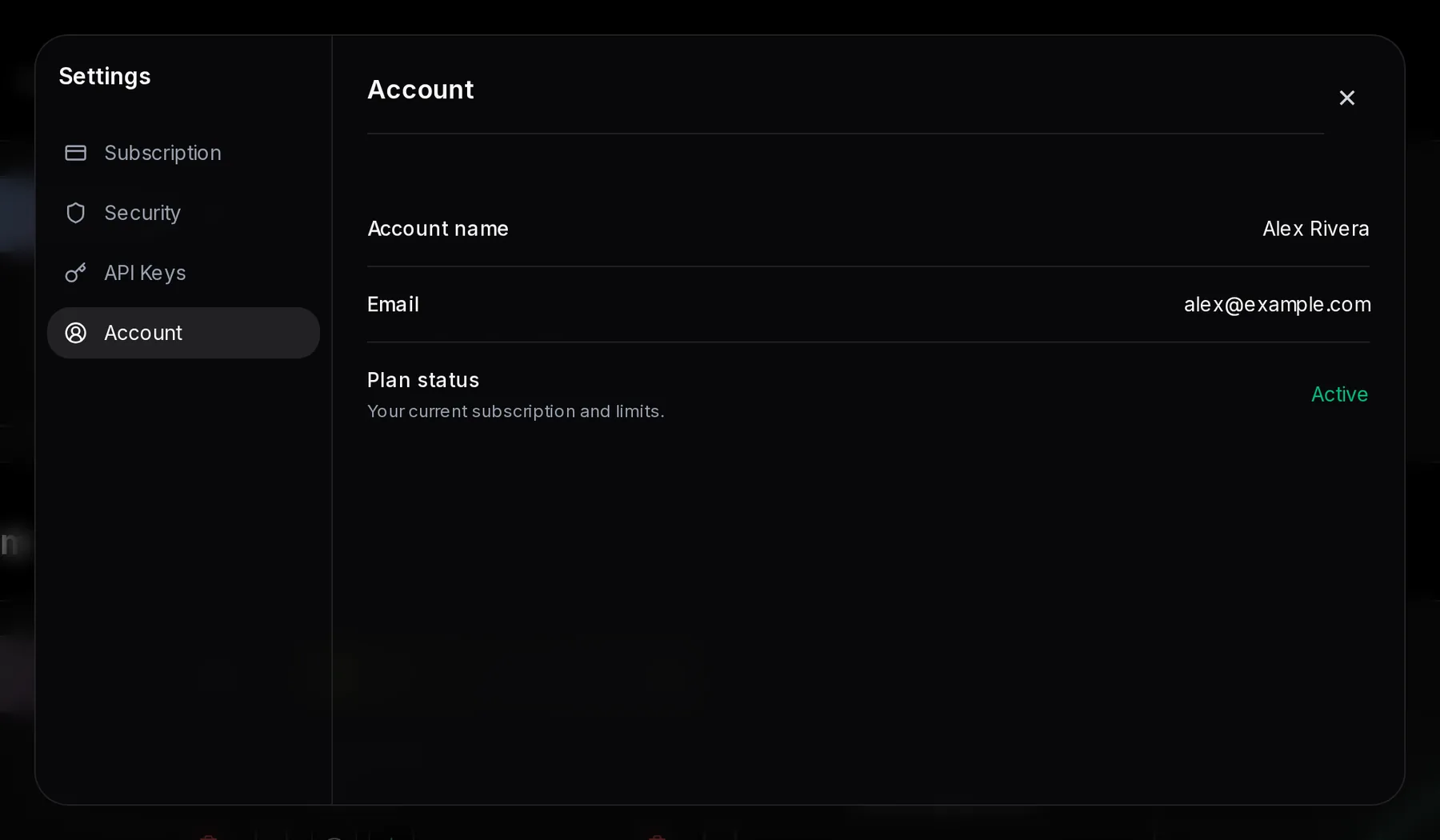
- Account tab
- Account name: your username
- Plan status: Active while at least one plan is running
These fields are read-only. To change the email on your account, ask in the live chat. Plan status only says whether a plan is active; the plan itself and its allowances are on the Subscription tab.