
YouTube live: the dashboard, live viewers and AI chat
Socialbot’s YouTube live tools are two services and one screen. Live viewers join your stream for a length you pick, from 30 minutes to 6 hours. AI chat posts 2–5 English messages a minute about what you’re doing on stream. The live dashboard shows the stream and your actual chat while both run. Neither service takes a link, and neither starts until you’re live. Views, likes and subscribers for your videos are at the end of this page.
What the YouTube live dashboard shows while you stream
Open a YouTube channel from the dashboard. Before you go live, the top of the page shows your channel art with an Offline tag and an empty chat box.
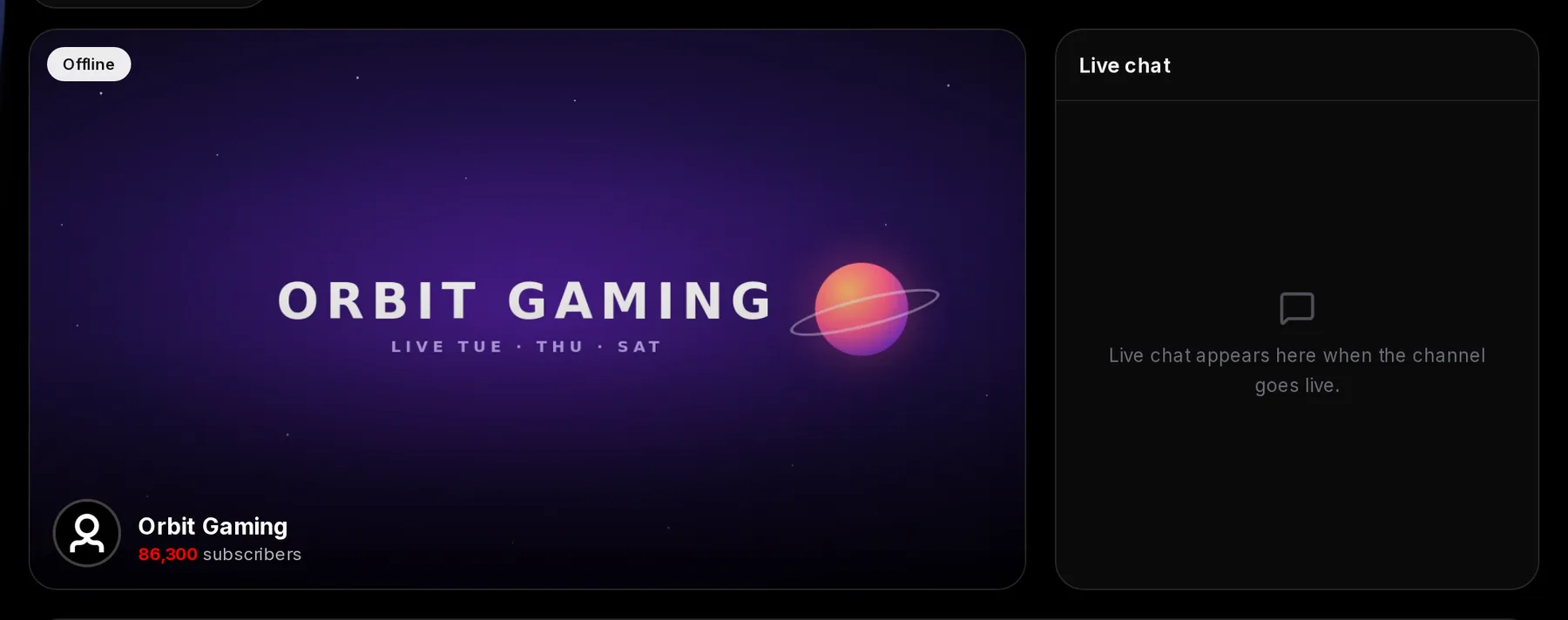
- Offline until you go live
- Channel name
- Subscriber count
- Live chat: empty until you go live
When you start broadcasting, the page switches on its own, usually within a minute. The preview becomes a picture of your stream that refreshes every 15 seconds, and your real YouTube chat starts scrolling beside it.
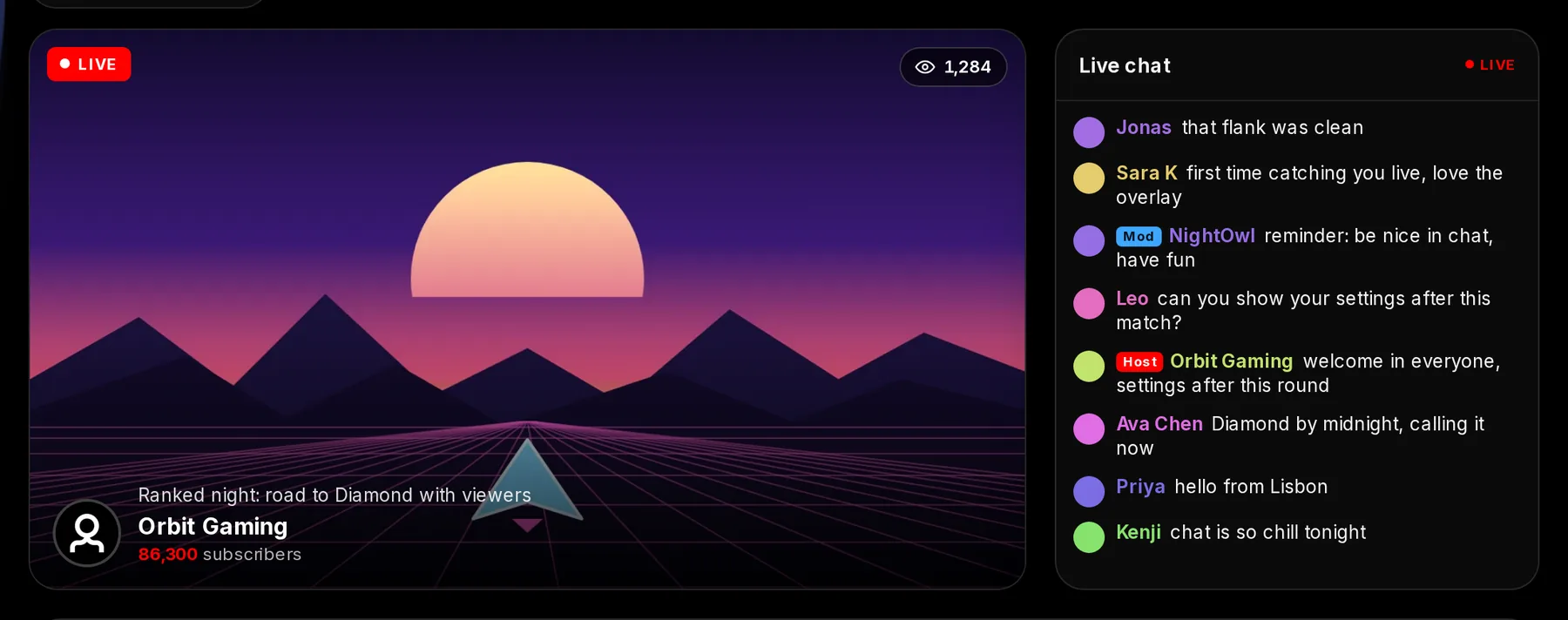
- LIVE
- Current viewer count
- Stream title
- Live chat: your real YouTube chat
- LIVE on the chat: connected to your stream’s chat
- Your own message, with the Host badge
- A moderator’s message, with the Mod badge
Super Chats, the paid messages YouTube highlights, show with the amount beside the sender’s name, so a $20 supporter doesn’t scroll past unthanked. Your instances sit below, so you can watch a boost land without opening YouTube Studio.
How to add live viewers to your stream
- Go live and wait for the page to show LIVE.
- Press Create instance and pick Live viewers. The target fills in with your current stream.
- Set the number of viewers, up to your plan’s per-boost limit.
- Under How long viewers stay, pick a length that covers the rest of your stream.
- Press Start instance. Viewers arrive within 15 minutes.
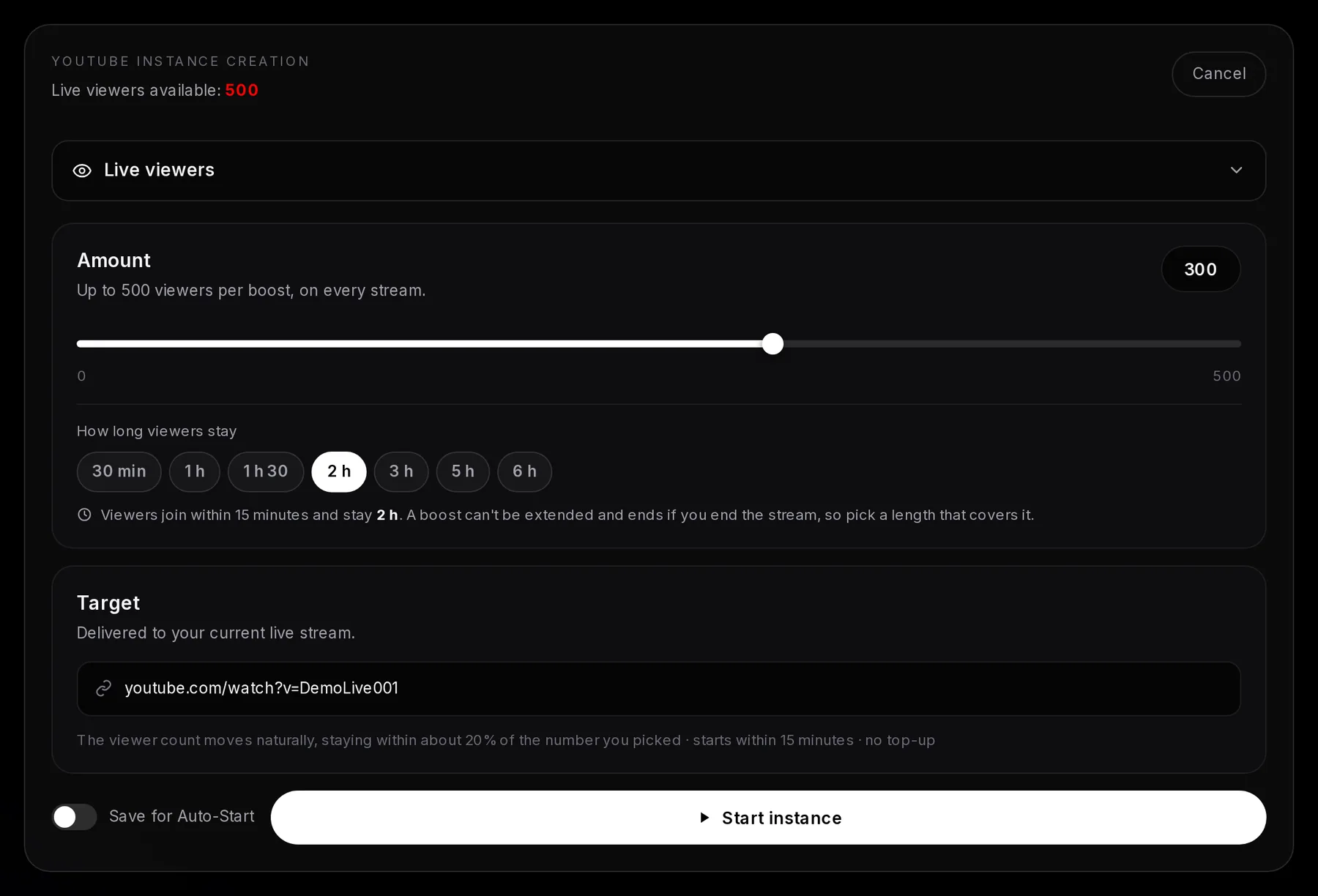
- Service: Live viewers
- Your plan’s limit per boost, usable on every stream
- Amount: how many viewers
- How long viewers stay
- What happens once you start
- Your current live stream, filled in for you
- Start instance
The lengths are 30 minutes, 1 hour, 1 h 30, 2, 3, 5 and 6 hours. There’s no 4-hour option, so a stream you expect to run three and a half hours needs 5. The count moves naturally, within about 20% of the number you picked, so a 50-viewer boost on Starter reads between 40 and 60 at any moment rather than a flat 50.
If the channel isn’t live yet
Live viewers and chat messages need a stream to go to. While you’re offline, the form says so and the start button stays grey.
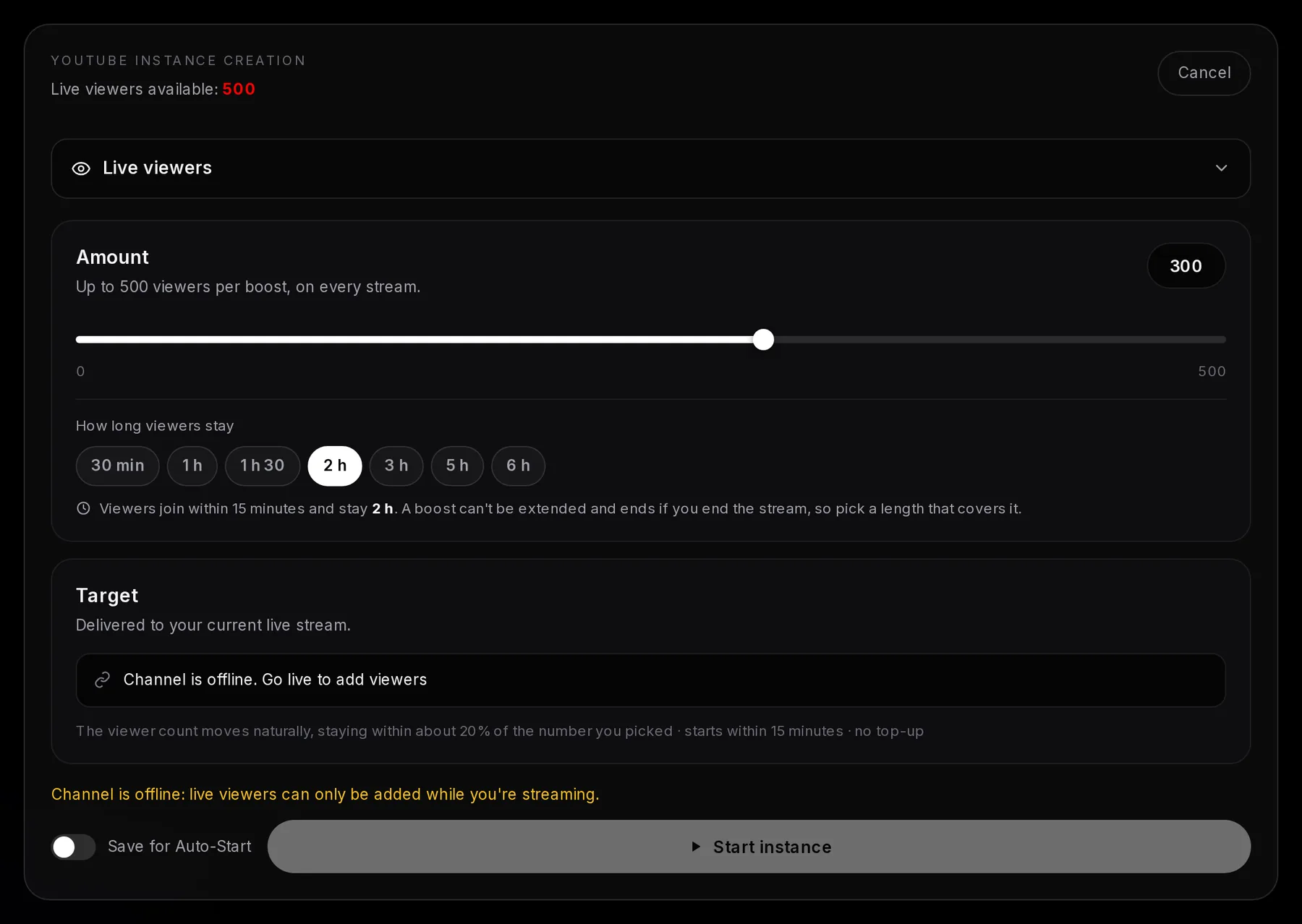
- No stream to target: Channel is offline. Go live to add viewers
- The offline warning
- Start instance stays grey
To have viewers start by themselves each time you go live, turn on Save for Auto-Start instead. Socialbot can then learn your stream length and size each boost for you, as how Auto-Start works explains.
What your plan’s live-viewer number means
It’s the most viewers per boost, and it works on every stream while the plan is active: 50 on Starter, 150 on Pro and 500 on Elite, weekly or monthly, and 25 on the $4 trial. Boosts running at the same moment share it, across all your YouTube channels. Prices are on plans and prices.
How AI chat posts in your YouTube live chat
An AI follows your stream in real time and posts 2–5 English messages a minute about what you’re saying and doing, as chatters with varied names and avatars. The first messages arrive within 30 minutes of starting. Tell viewers you’re about to try the third hot sauce and the chat starts talking about hot sauce.
In the form it’s called Chat messages. Pick it while you’re live, set the amount and press Start instance. The line under the slider tells you how long your amount lasts.
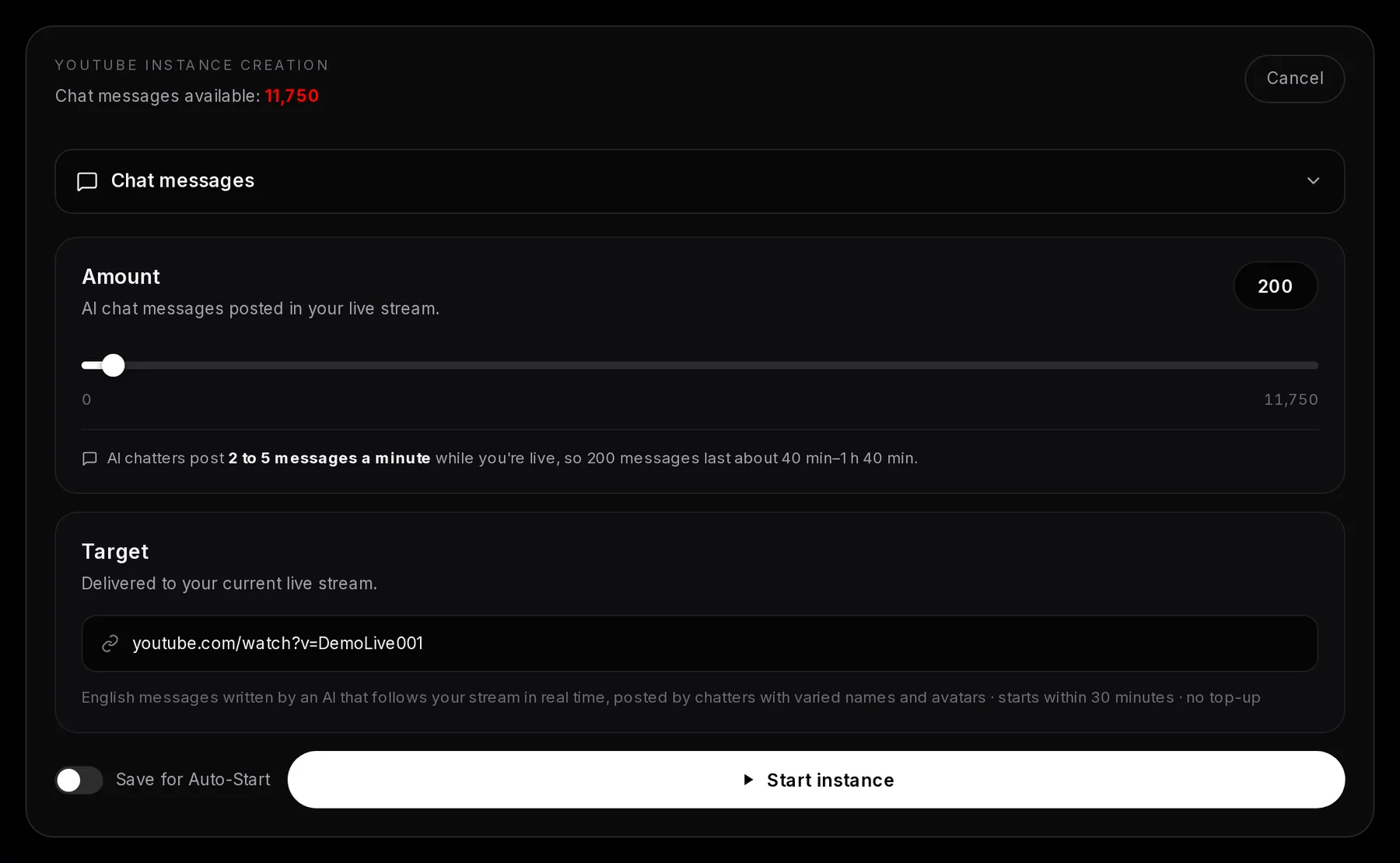
- Service: Chat messages
- Amount
- How long that amount lasts at 2 to 5 messages a minute
- Your current live stream
- Start instance
In a silent art stream or a music-only broadcast, the AI works from your stream title and description. “Painting a lighthouse in watercolor, 2 hours” gives it far more to go on than “Live”. Messages are English only, and it isn’t a moderation bot: it doesn’t ban, time out or answer commands, so keep Nightbot or Streamlabs Cloudbot for that job. See our AI chat bot for YouTube live page for plans.
Open your live chat to everyone
AI chat can only post when anyone can type in your chat. Subscriber-only or members-only mode blocks every message. Before you go live, open the stream’s settings in YouTube Studio’s Live Control Room and set the live chat’s participant mode to Anyone, not Subscribers or Members-only. Check it again after a members-only stream.
How far the AI chat allowance goes
| Plan | AI chat messages | Chat time at 2–5 a minute |
|---|---|---|
| Trial ($4, 12 hours) | 100 | 20–50 minutes |
| Starter weekly | 300 | 1–2.5 hours |
| Pro weekly | 1,000 | About 3–8 hours |
| Elite weekly | 3,000 | 10–25 hours |
| Starter monthly | 1,200 | 4–10 hours |
| Pro monthly | 4,000 | About 13–33 hours |
| Elite monthly | 12,000 | 40–100 hours |
Every message comes out of your plan’s allowance, which comes back every 7 or 30 days (how allowances work).
Views, likes and subscribers for your YouTube videos
Views and likes go to one video, Short or stream, so they take a link. Copy it from the video’s Share button and paste it as the target.
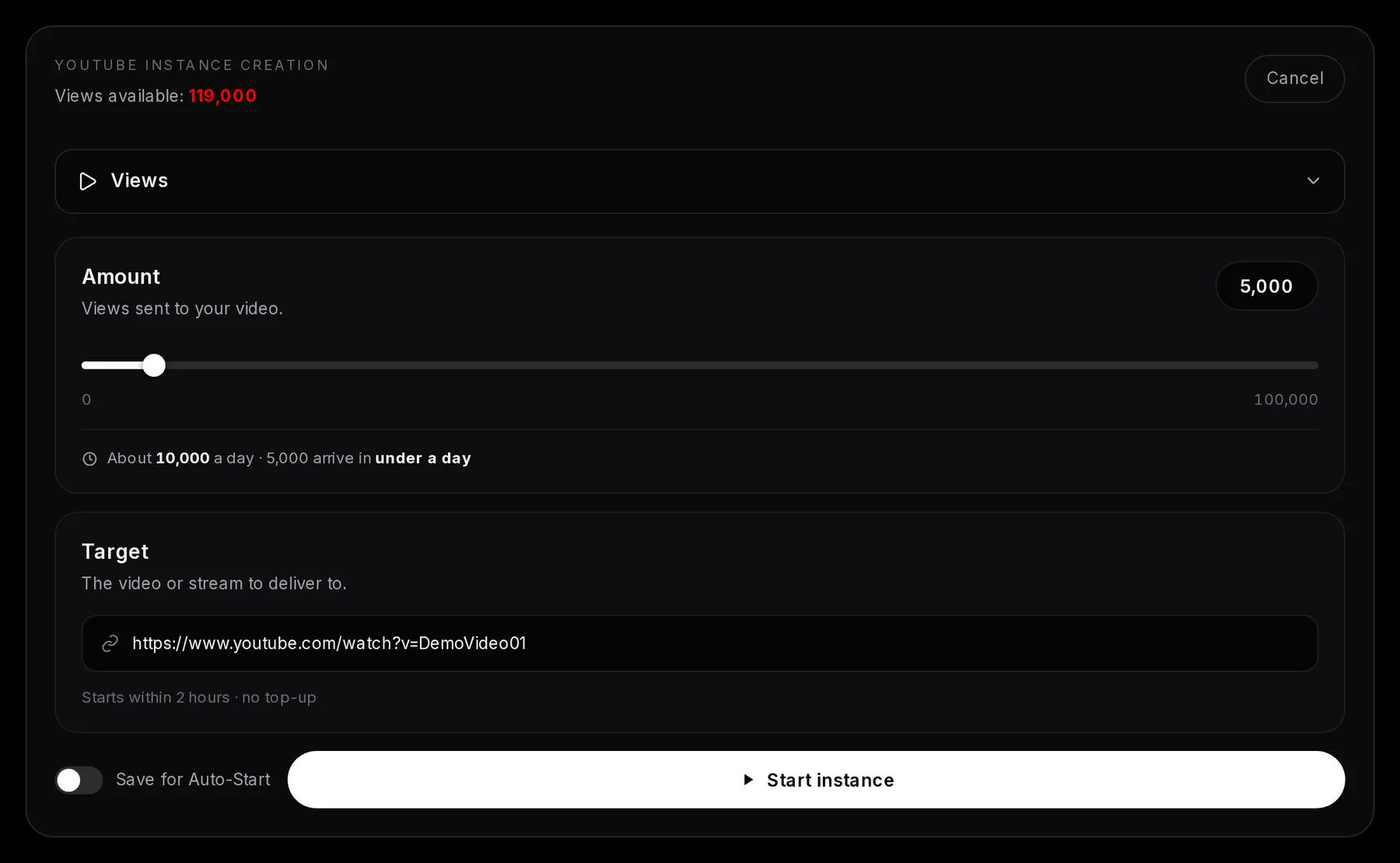
- Service: Views
- Pace and how long 5,000 takes
- The video or stream link
- Delivery note: the start time and the top-up
- Start instance
| Service | Per instance | Starts | Pace | Top-up |
|---|---|---|---|---|
| Views | 1,000 to 100,000 | Within 2 hours | Up to 10,000 a day | None |
| Likes | 20 to 5,000 | Within 1 hour | Up to 10,000 a day | 60 days |
| Subscribers | From 50, one per channel at a time | Within 12 hours | 100–200 a day | 30 days |
For views, the video must be available in every country, so a region-blocked upload won’t get them. Subscribers go to the channel, not a video: the subscriber count must be public and the channel needs at least one video longer than 5 minutes, and Shorts-only channels aren’t accepted. Subscribers also can’t be saved for Auto-Start.
Every YouTube instance, live or not, then shows up in the channel’s instance list under the live dashboard.
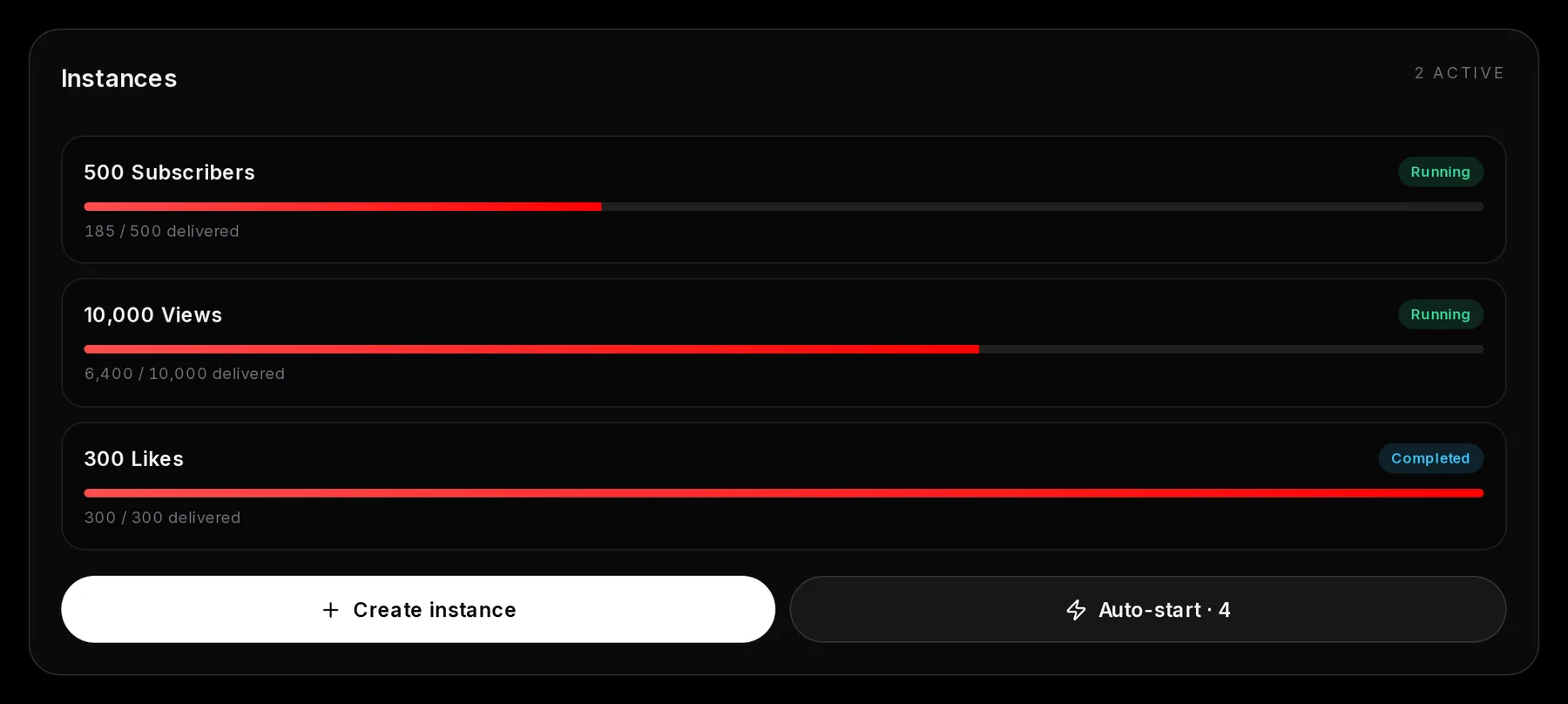
- Status
- Delivered so far
- Create instance
- Auto-start: the number of rules on this channel
Best practices for live viewers and AI chat on YouTube
- Round the length up. A stream you expect to run 1 hour 40 minutes gets 2 hours; one that might reach 2 hours 30 gets 3. A spare half hour beats viewers leaving before your finale.
- Start boosts during your intro. Viewers can take up to 15 minutes to arrive and chat up to 30, so for a match that begins at 8:30, start both at 8:00. Auto-Start does this when you go live.
- Ration chat on smaller plans. A full 2-hour stream uses 240 to 600 messages, which can empty Starter weekly’s 300 in one night. Run chat for the first half hour and the main event instead, and the same 300 can stretch across more than one stream.
- Narrate. The AI follows what you say, so “I’m going back for the last key” gives chat something to react to.
A higher count and a busy chat change what a newcomer sees in the first few seconds. They don’t make the stream worth staying for. Buying engagement isn’t illegal, but it goes against YouTube’s terms, and YouTube can remove engagement it treats as inauthentic. Our guide to getting viewers on YouTube live covers the rest of the work.