
How Auto-Start works on TikTok and YouTube
Auto-Start is an instance you save once and Socialbot starts again each time a trigger fires on your channel. On TikTok that’s a new post; on YouTube it’s going live (live viewers and AI chat) or uploading a video (views and likes). Instagram has no Auto-Start.
What an Auto-Start rule sends, and where
A rule is one metric and one amount on one channel, such as “1,000 views on every new post” or “50 live viewers every time I go live”. Each time its trigger fires, it places an ordinary instance, listed with your others and delivered at that service’s usual start time and pace.
| Platform | Trigger | Metrics | Where it delivers |
|---|---|---|---|
| TikTok | A new post (checked every 5 minutes) | Followers, likes, views, comments, saves, shares | Followers to your profile; the rest to the new post |
| YouTube | You go live | Live viewers, chat messages | Your current live stream |
| YouTube | You upload a new video (checked every 5 minutes) | Views, likes | The new video |
| Not available | None | Start each instance by hand |
Rules spend the same allowance as instances you start by hand, so they can’t send more than your plan has left. YouTube subscribers can’t be automated: the Save for Auto-Start switch disappears when you pick them.
How to create a TikTok Auto-Start rule
- Open the TikTok channel from your dashboard and press Create instance. (Or press Auto-start, then New Auto-Start rule, which opens the same form with the switch already on.)
- Pick the service and set the amount each new post should get.
- Turn on Save for Auto-Start at the bottom of the form. The target changes to “Each new @yourhandle post”, so there’s no link to paste.
- Press Save for Auto-Start. The button replaces Start instance while the switch is on.
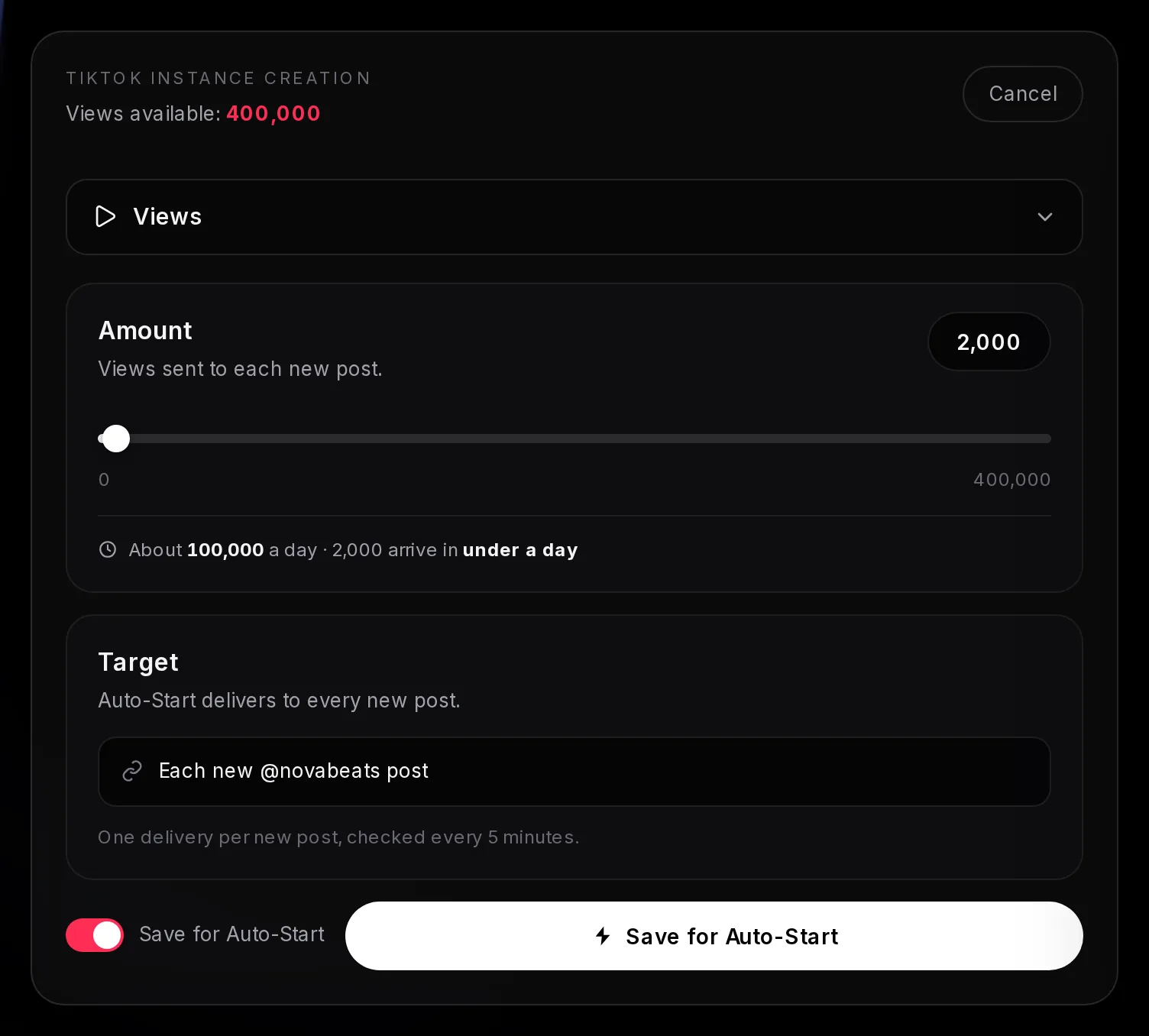
- Save for Auto-Start switched on
- Target: Each new @novabeats post
- How it runs: one delivery per new post, checked every 5 minutes
- Save for Auto-Start: saves the rule, sends nothing now
Saving needs an active plan on that platform that includes the metric, with enough of it left to cover the amount. Plans and prices shows what each plan includes per week or month.
TikTok Auto-Start fires once per new post
Every 5 minutes, Socialbot checks your TikTok profile for a post it hasn’t seen. When one appears, each rule on the channel fires for it once and never again. Followers go to your profile and every other metric to the new video.
The first check after you save a rule sends nothing. It only records your latest post as the baseline, so none of an account’s 200 existing videos get anything. To boost an older video, start an instance on it by hand.
Timing is the check (up to 5 minutes) plus the service’s start time. TikTok views start within 15 minutes of that, so a new video sees them within about 20 minutes of posting. Likes start within 1 hour and followers within 3, and your account must stay public while followers arrive.
If a metric’s allowance has run out when a post appears, that post is skipped for the metric, not queued. A skate account on Starter weekly (10,000 views) posting twice a day with a 1,000-view rule uses the week’s views in 5 days, so its four posts on days 6 and 7 get none.
Where to see, change or delete Auto-Start rules
Press Auto-start on the channel page. The number on the button (“Auto-start · 2”) is how many rules the channel has, and the dialog lists them.
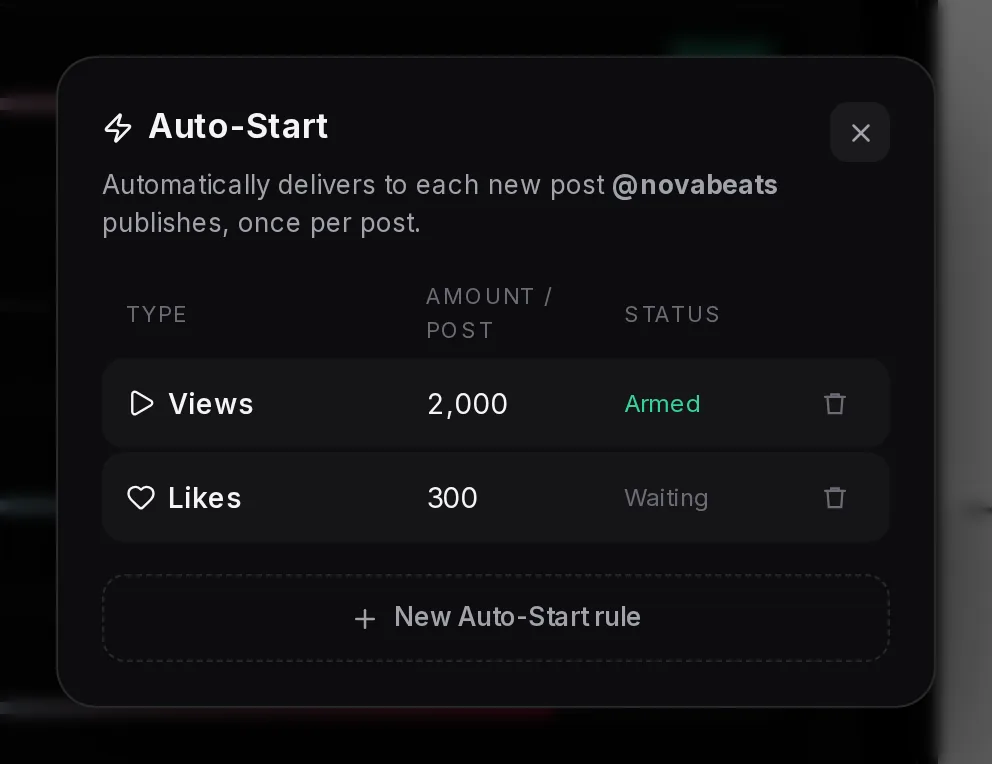
- A rule
- Amount each new post gets
- Status: Armed or Waiting
- Bin: deletes the rule
- New Auto-Start rule
- Waiting: the rule is saved but hasn’t had its first check yet.
- Armed: the baseline is recorded and the rule fires on the next new post.
The bin deletes a rule straight away. Instances it already placed keep delivering. There’s no edit button: each channel holds one rule per metric, so to change an amount, save a new rule for the same metric. It replaces the old one and records a new baseline, so it fires from your next post, not the one you just made.
A channel with no rules shows an empty dialog. New Auto-Start rule opens the instance form with Save for Auto-Start already on.
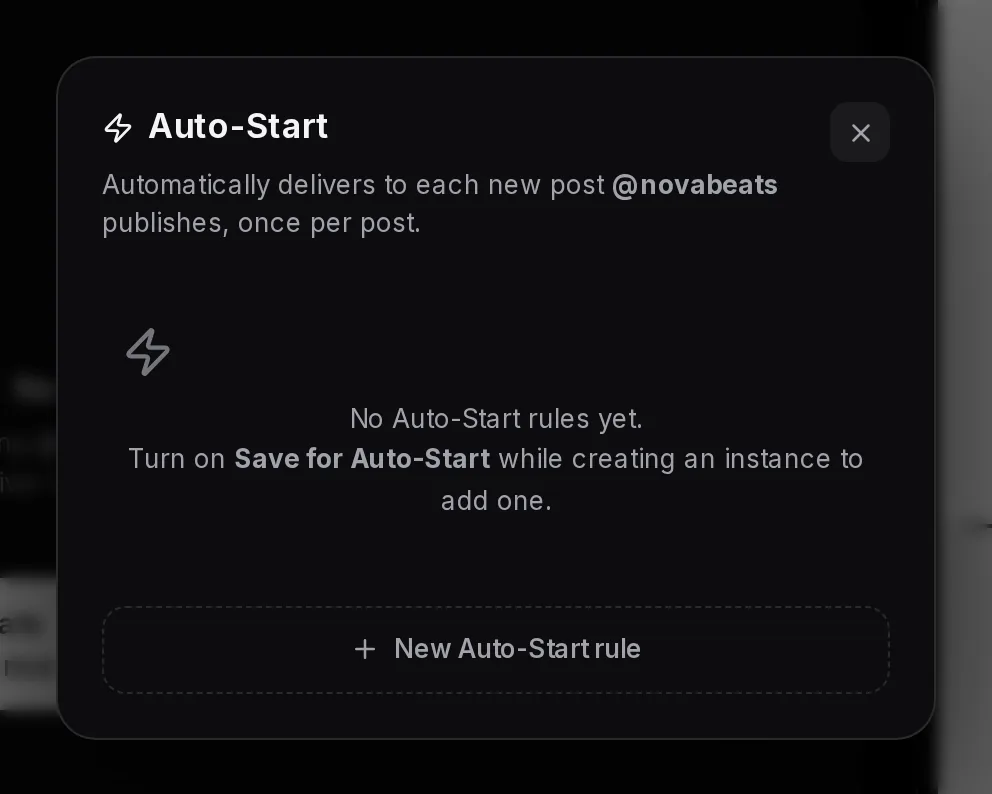
- New Auto-Start rule
YouTube Auto-Start on each new upload
On a YouTube channel, a views or likes rule fires on every new upload. Set it up the same way: Create instance, pick Views or Likes, turn on Save for Auto-Start, press Save for Auto-Start.
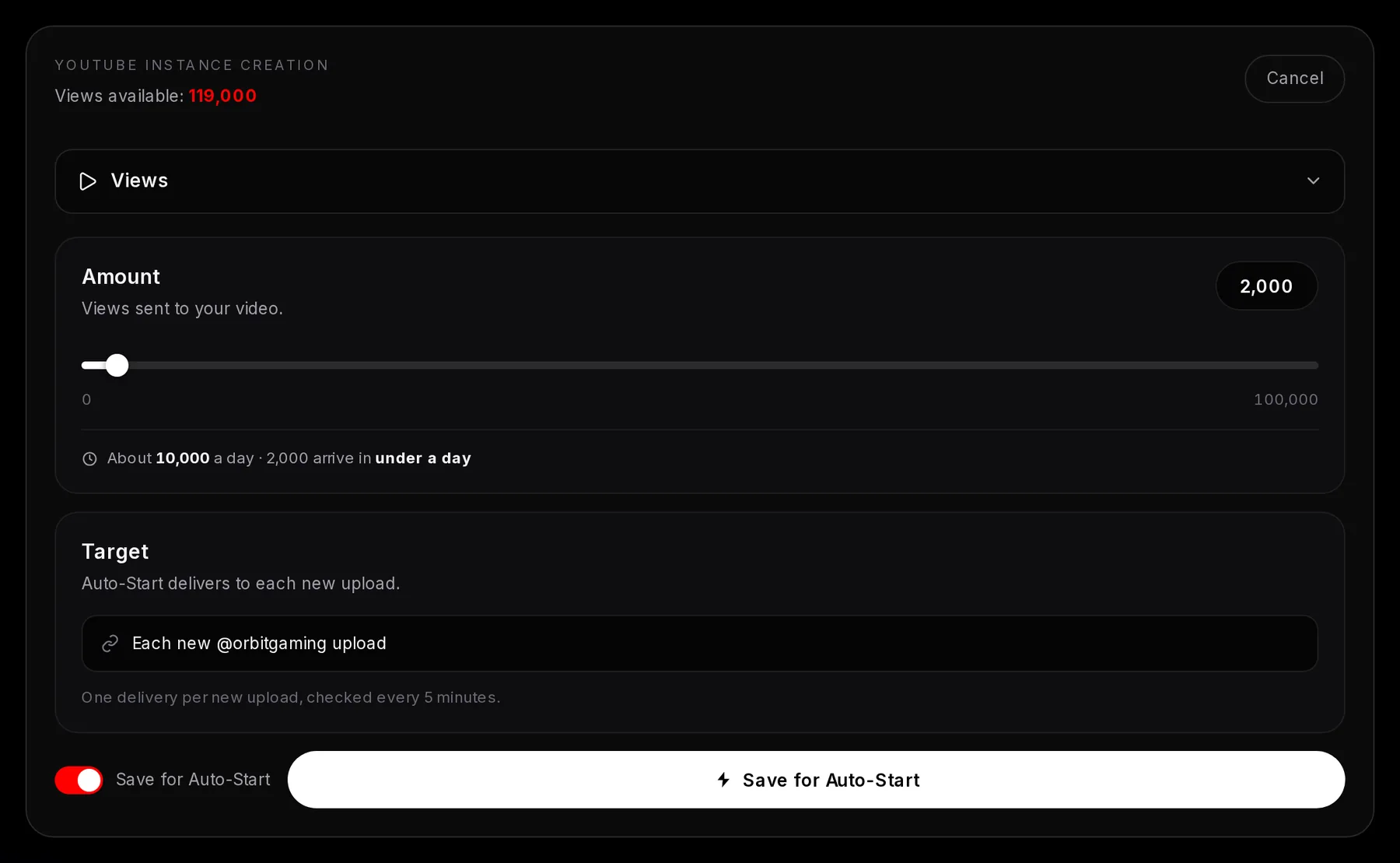
- Save for Auto-Start switched on
- Target: Each new @orbitgaming upload
- How it runs: one delivery per new upload, checked every 5 minutes
- Save for Auto-Start
Views start within 2 hours and need a video that’s available in every country, so a region-blocked upload won’t get them. Likes start within 1 hour. The per-instance limits apply to rules too: a views rule needs at least 1,000 per video, and a likes rule tops out at 5,000.
YouTube Auto-Start when you go live
Live-viewer and chat-message rules fire once per stream, when Socialbot sees your channel go live. It checks every 3 minutes, then live viewers arrive within 15 minutes of the boost starting and AI chat messages within 30.
- On the YouTube channel page, press Create instance and pick Live viewers.
- Set how many viewers each stream gets, up to your plan’s per-boost limit.
- Turn on Save for Auto-Start. Leave Learn my stream length on, and pick the length boosts should use until Socialbot has learned your streams.
- Press Save for Auto-Start. Repeat with Chat messages if you want AI chat on every stream too.
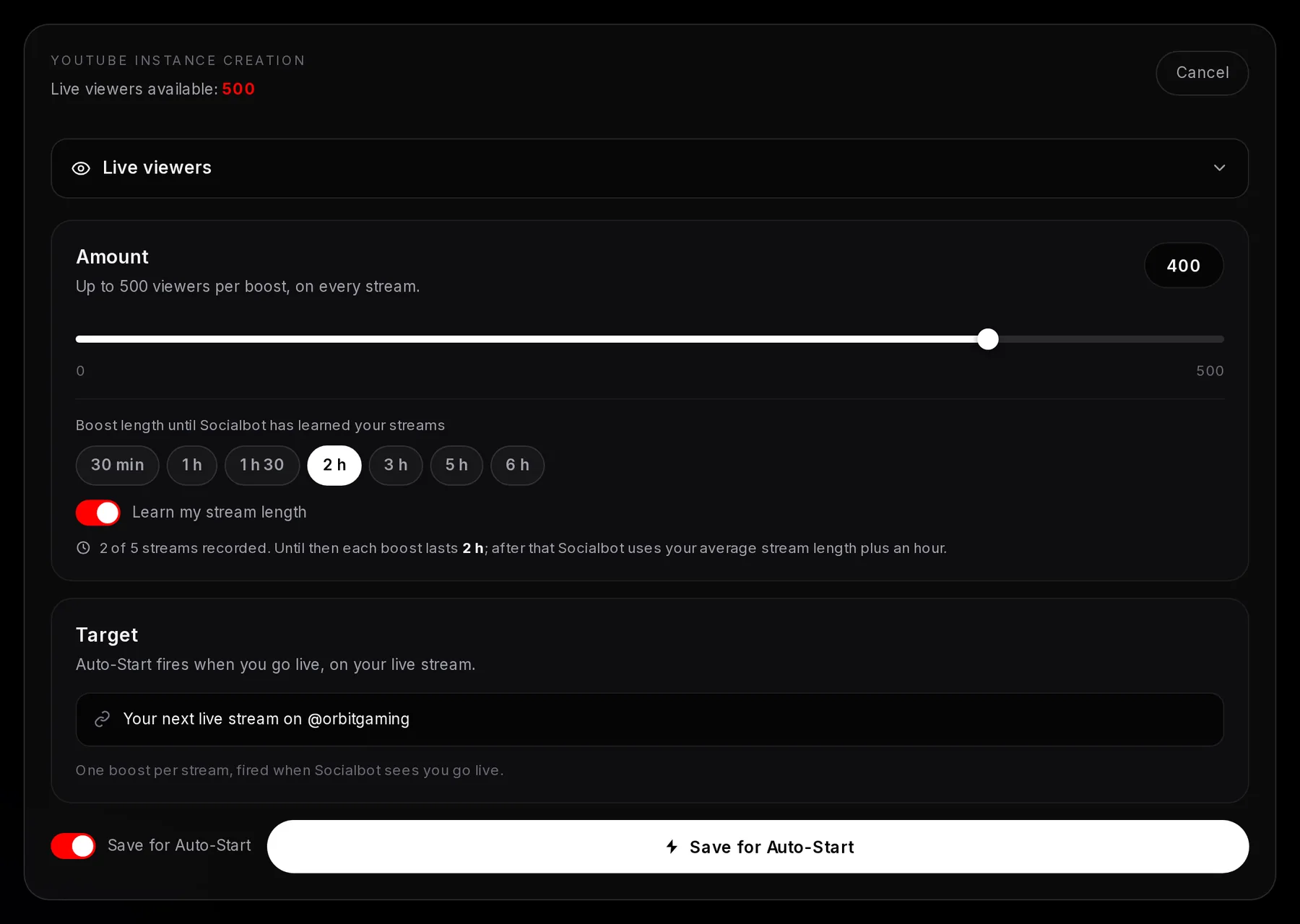
- Boost length until Socialbot has learned your streams
- Learn my stream length
- Progress: streams recorded so far, out of 5
- Target: Your next live stream
- Save for Auto-Start switched on
- Save for Auto-Start
The chat bot can only post if anyone can type in your chat, so keep subscriber-only and members-only mode off while the rule is on. Size a chat rule per stream: at 2–5 messages a minute, Starter weekly’s 300 last 60–150 minutes, so a 300-message rule spends the whole week on your first stream. Streaming twice a week, set 150. When less is left than a rule asks for, it sends what’s left, and it skips the stream once fewer than 5 messages remain.
Live viewers don’t run down. The plan’s number (50 on Starter) is the most viewers per boost, on every stream.
How Auto-Start learns your live stream length
A live-viewer boost lasts a fixed length and can’t be extended, and it ends early if your stream does. So with Learn my stream length on, Socialbot records how long your streams run. After 5 recorded streams it takes your average, adds an hour, and rounds up to the next length on sale: 30 min, 1 h, 1 h 30, 2 h, 3 h, 5 h or 6 h.
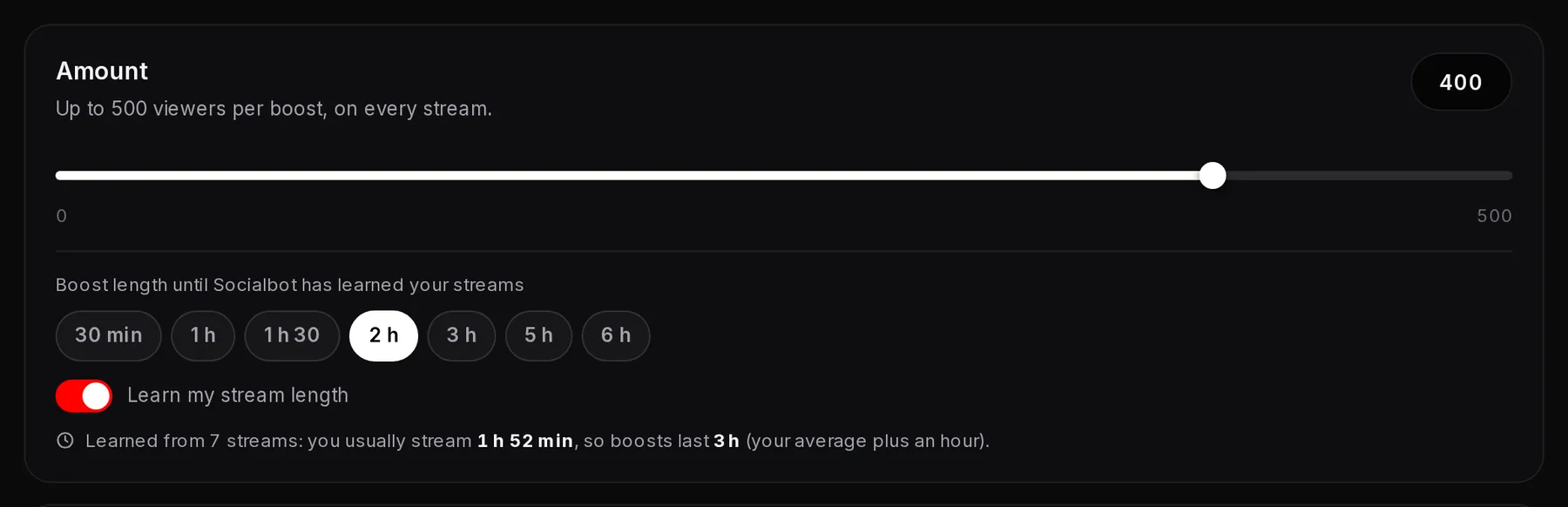
- Learn my stream length on
- What Socialbot learned, and the boost length it will use
In this example the average is 1 h 52 min. Plus an hour is 2 h 52 min, and the next length on sale is 3 h. More examples:
| Your average stream | Plus an hour | Boost length |
|---|---|---|
| 25 min | 1 h 25 min | 1 h 30 |
| 1 h 10 min | 2 h 10 min | 3 h |
| 3 h 20 min | 4 h 20 min | 5 h |
| 5 h 30 min | 6 h 30 min | 6 h (the longest on sale) |
- Until then, each boost uses the length you picked on the rule. The form counts progress, for example “2 of 5 streams recorded”.
- What counts: streams on a channel that has an Auto-Start rule, while your YouTube plan is active. Streams under 5 minutes are ignored, and the average uses your last 10 streams.
- Fixed length instead: turn Learn my stream length off and every boost lasts the length you pick, for example 6 h before a charity marathon.
The YouTube live guide covers the live dashboard, and YouTube live viewers lists each plan’s viewer count.
Reading the YouTube Auto-Start list
The YouTube dialog mixes both kinds of rule. Go-live rules show On go-live as their status; upload rules show Armed or Waiting, like TikTok rules.
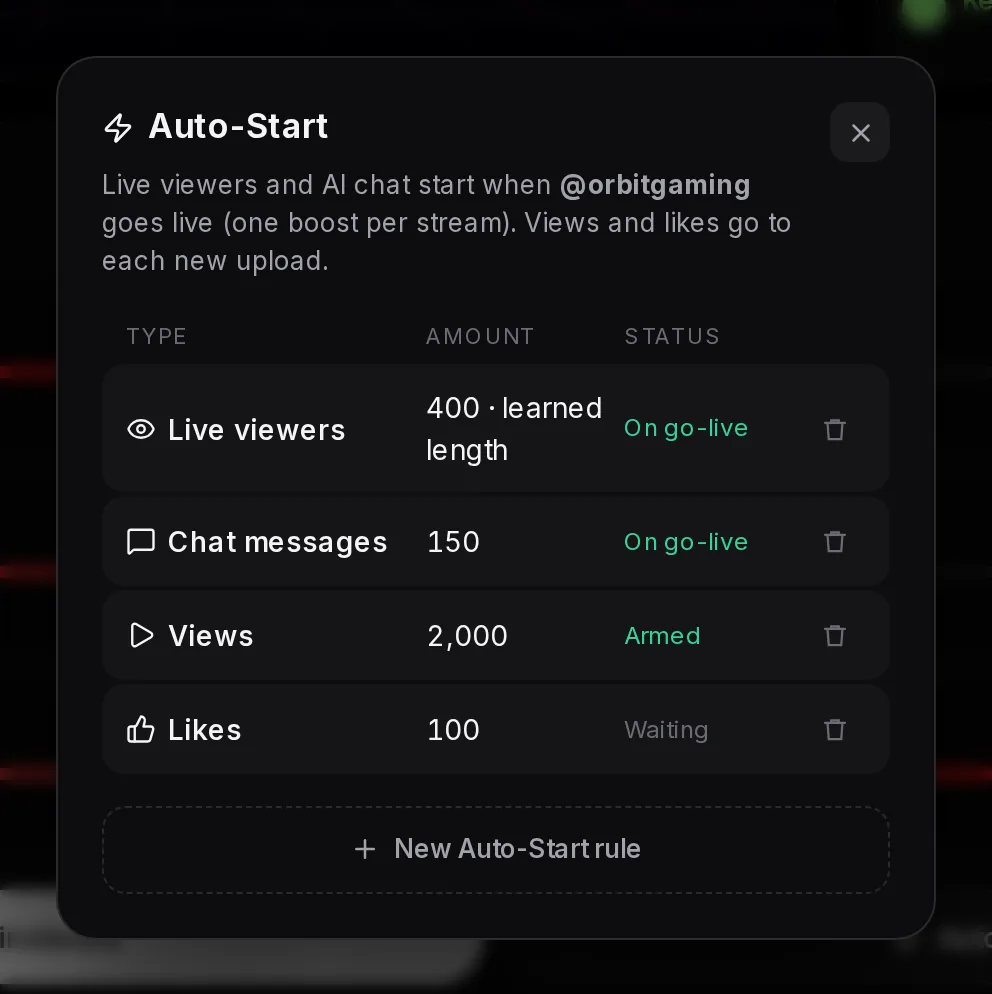
- A go-live rule
- Amount, and for live viewers the boost length (“learned length” or a fixed one)
- On go-live: fires each time you go live
- An upload rule, Armed
- Bin: deletes a rule
- New Auto-Start rule
Instagram has no Auto-Start: start instances by hand
You start every Instagram instance yourself from the dashboard, with the link to the post or Reel, so timing is up to you. Post a Reel at 6 pm, start Reel views on it straight away, and views begin within 1 hour. The steps are in TikTok and Instagram instances.