
The Socialbot dashboard and your instances
The Socialbot dashboard is where you add your channels, start instances and watch them deliver. An instance is one run of one service, such as 500 likes on a single Instagram Reel, paid from your plan’s allowance on that platform. The getting started guide covers your first channel and first instance.
What the main dashboard shows
The dashboard has one section per platform, each with a card for every account you’ve added. The pills at the top narrow it to one platform.
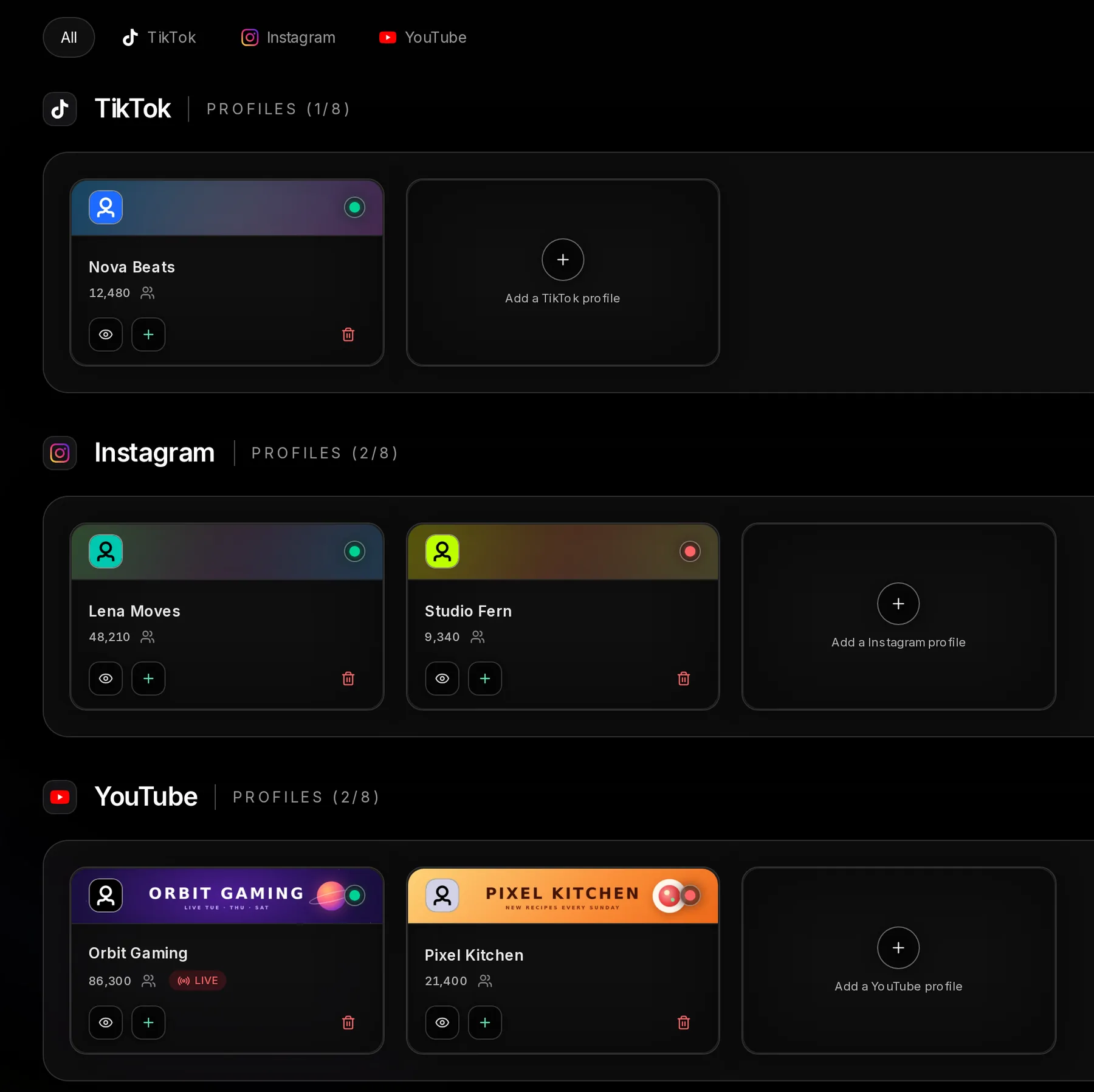
- Platform filter: All, TikTok, Instagram, YouTube
- Profiles: how many accounts you’ve added on this platform
- A profile card
- Add a TikTok profile: adds another account on this platform
- A YouTube channel that’s streaming right now shows LIVE
You can add accounts on a platform before you have a plan there. Starting an instance needs the plan; adding a profile doesn’t.
Profile cards: status light, LIVE tag and buttons
Each card shows the account’s avatar, name and current follower or subscriber count, plus three buttons along the bottom.
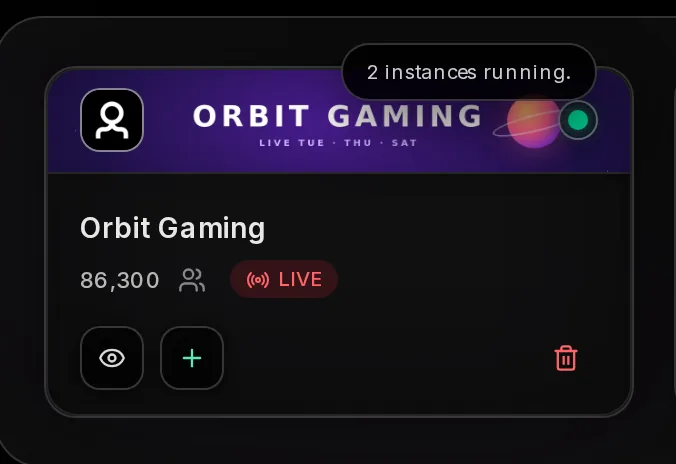
- Avatar
- Status light: green while instances are running (hover to see how many), red when none are
- Name
- Followers, or subscribers on YouTube
- LIVE: YouTube only, while the channel is streaming
- Eye, View profile: opens the channel page
- Plus, Create instance: opens the channel page with the form ready
- Bin, Remove profile
The channel page: phone preview or live dashboard
Open a TikTok or Instagram channel and its profile appears in a phone-style preview beside your instances. TikTok shows Following, Followers and Likes; Instagram shows posts, followers and following. These counts aren’t live: Socialbot reads them when you add the account and refreshes them every couple of days. To follow an instance, watch the delivered count under it, which updates while the page is open.
A YouTube channel gets a live dashboard instead: a stream preview, the viewer count and your real live chat once you go live. The YouTube live guide goes through it. Back to dashboard at the top left returns to the main dashboard.
How to create an instance: service, amount and target
Press Create instance on the channel page and fill in three things. Nothing is sent until you press Start instance, and Cancel at the top of the form closes it.
- Service. The picker lists each metric with how much is left this period.
- Amount. The slider tops out at what’s left of that allowance, or at the most one instance can take when that’s lower (5,000 for YouTube likes). A few services also have a smallest amount you can start: 100 Instagram followers, 10 Instagram comments, 50 YouTube subscribers, 1,000 YouTube views.
- Target. Followers and subscribers go to the channel itself. Likes, views, comments, saves and shares need the link to one post, Reel or video. YouTube live viewers and AI chat go to your current stream and only start while you’re live.
A greyed-out Start instance means something is missing: an active plan on that platform, a metric your plan includes, an amount at or above the minimum, or a link where one is needed. The form says which with a line such as “No active TikTok plan. Subscribe to create instances.” or “Your plan doesn’t include Comments.”
Step-by-step screenshots for each platform are in TikTok and Instagram instances and the YouTube live guide. On TikTok and YouTube, the Save for Auto-Start switch turns the instance into a rule that runs by itself, explained in how Auto-Start works.
Reading the pace and ETA line before you start
Under the slider, paced services show the daily pace and how many days your amount takes. For 30,000 views on YouTube Elite weekly it shows about 10,000 a day and about 3 days: the amount divided by the pace, rounded up. Anything within one day’s pace reads “under a day”.
The estimate uses the top of each service’s pace and starts counting when delivery begins, not when you press the button. It runs optimistic in two places.
- TikTok shares move at 500–1,000 a day. For 3,000 shares the estimate says about 3 days; at the slow end it takes 6.
- Instagram comments usually start within 1 hour but can take 10 hours or more on busy days, so the “under a day” shown for 60 comments counts from that later start.
Live viewers and AI chat have no daily pace. Viewers stay for the length you pick, 30 minutes to 6 hours, and AI chatters post 2–5 messages a minute.
Instance statuses: Starting, Running, Completed, Ended early, Stopped
An instance goes from Starting to Running and ends as Completed, Ended early or Stopped. The label above the list counts the active ones (“1 active” means one is Starting or Running). Ended instances stay in the list for about 5 minutes, then drop off.
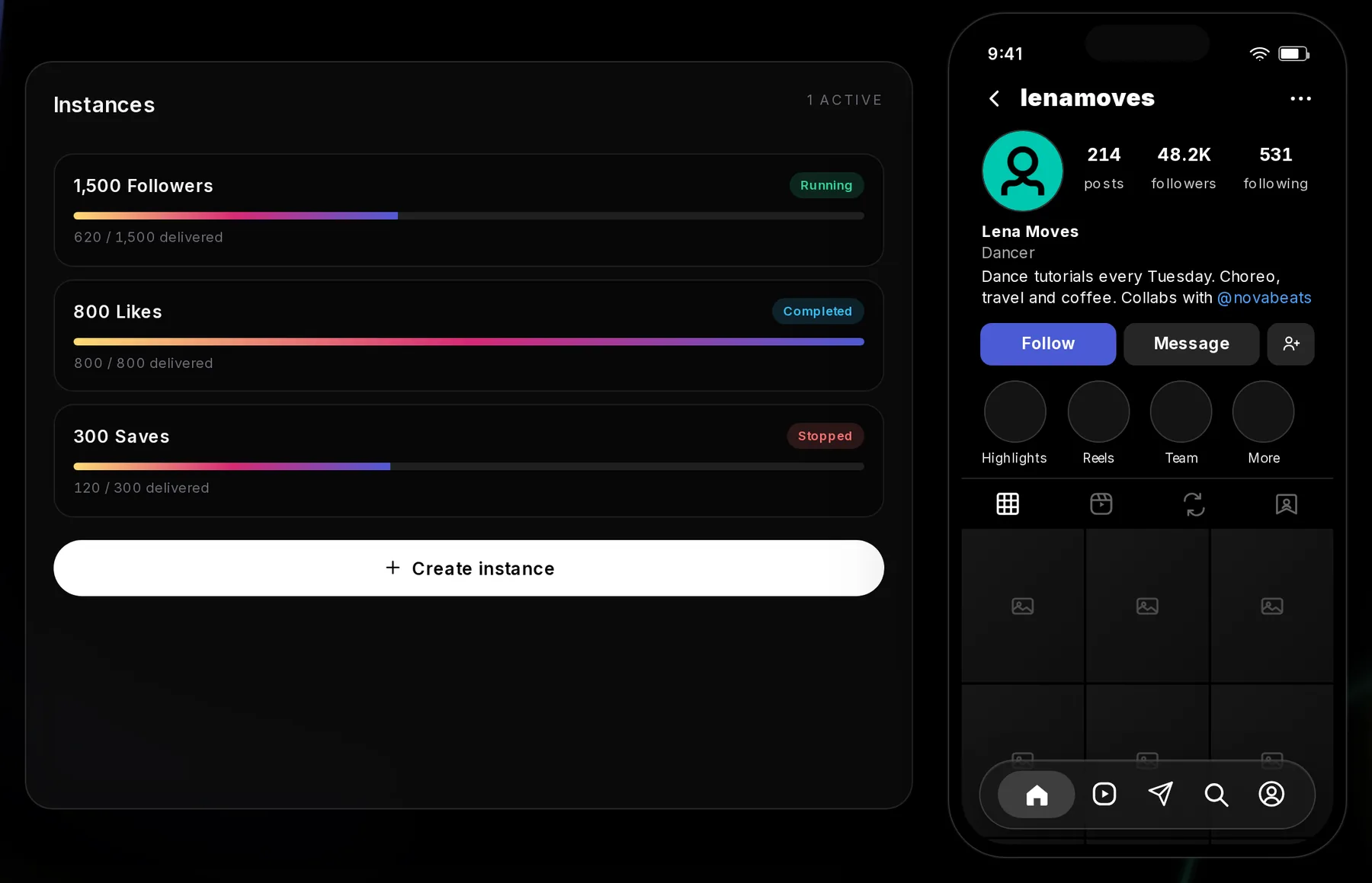
- Running: delivering
- Stopped: ended before it finished
- Create instance
| Status | What it means |
|---|---|
| Starting | For the first minute after you press Start instance, the row counts down (“Starting in 0:45”) next to a Stop button. Then delivery gets going and the row usually turns Running a minute or two later. |
| Running | Delivering at the service’s daily pace. The delivered count can stay at 0 until the service’s start time: up to 15 minutes for TikTok views, 12 hours for YouTube subscribers. |
| Completed | The full amount arrived. For a live-viewer boost, the length you picked has run out. |
| Ended early | Ended before the full amount arrived, sometimes before anything arrived. Whatever wasn’t delivered goes back to your allowance, so you can start it again. It happens most often with large amounts of Instagram comments. |
| Stopped | Ended before it finished. When you press Stop in the first minute, nothing is delivered and the full amount goes back to your allowance: the row reads “500 returned to your allowance”. |
A Running instance that isn’t moving usually comes down to a setting on your side: a TikTok account switched to private, Instagram’s “Flag for review” left on (Settings → Follow and invite friends), or a YouTube live chat limited to subscribers or members. If none applies, ask us in live chat.
How to stop an instance
You can stop an instance during its first minute. An instance you start by hand waits 60 seconds before it begins, and its row counts down (“Starting in 0:45”) with a small Stop button beside it. Press it and the instance ends before anything is delivered: it turns Stopped and the full amount goes back to your allowance.
When the countdown runs out, the button goes away and the instance runs to the end. From then on it can’t be stopped, from the dashboard or by support, and a live-viewer boost keeps its viewers until the length you picked runs out. Instances started by Auto-Start have no stop window: they begin as soon as the new post or stream is found.
How multiple channels share one plan’s allowance
A plan belongs to a platform, not a channel. Every account on that platform draws from the same allowance, so the service picker shows one number, not one per account.
Take a café with a main Instagram account and a second one for its catering side, on Pro monthly with 240 comments. Put 200 comments on the main account’s new Reel and the catering account’s picker reads 40 left until the 30-day period resets.
The allowance comes off when an instance starts, not as it delivers. 800 YouTube subscribers take about 4 days to arrive at 200 a day, but all 800 come off on day one.
YouTube live viewers are the exception. The plan’s number is the most viewers per boost, usable on every stream, and boosts running at the same moment share it. On Pro (150), a 100-viewer boost on one channel leaves 50 for a second channel live at the same time. Periods and resets are in how allowances work.